Stay focused on Android TV: focus in Flutter
 Koen Van Looveren
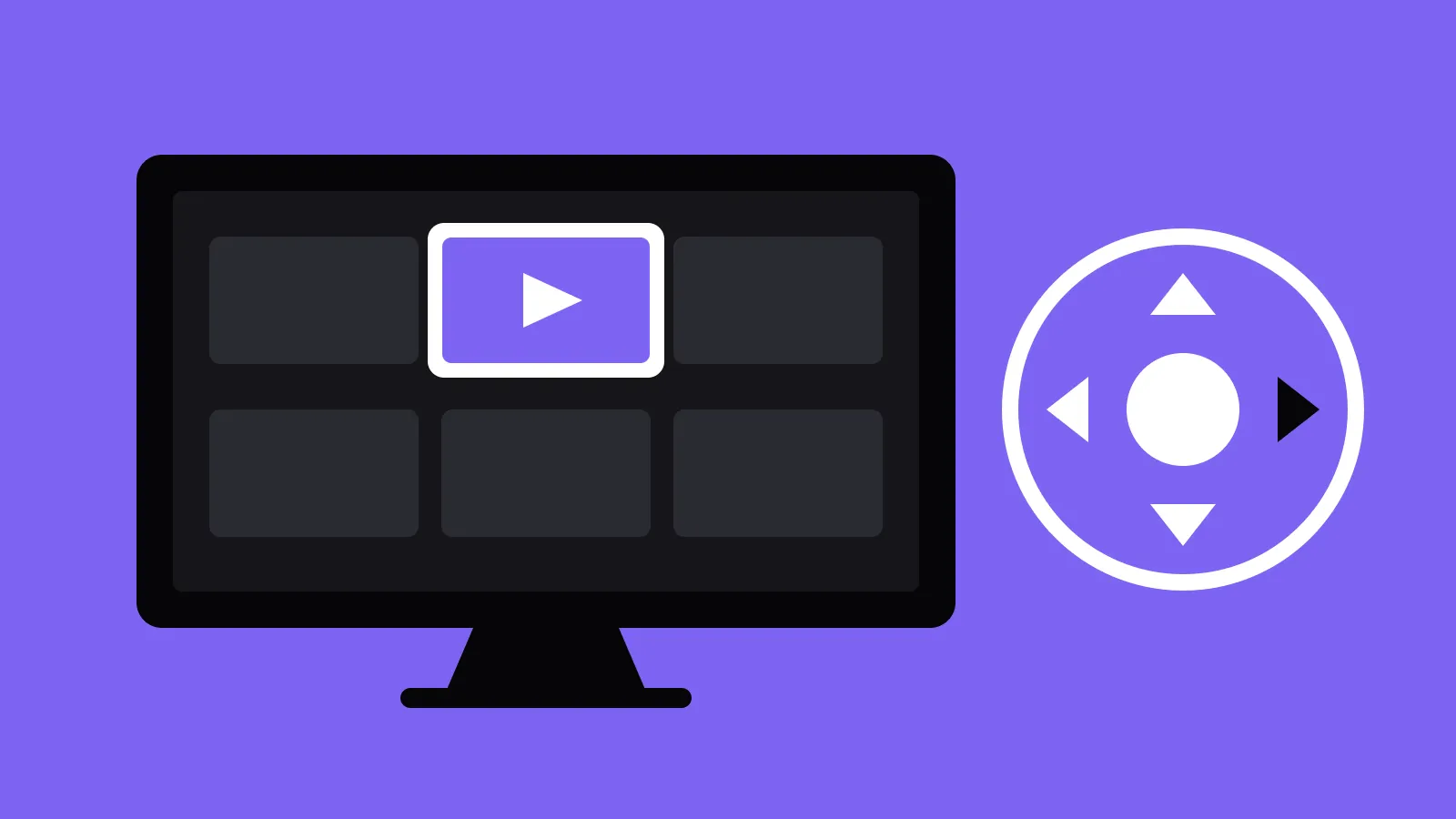
A TV has no touchscreen and no mouse: just a remote with arrow keys, OK and back. Everything a user does goes through focus. That makes Android TV the best place to learn how focus works in Flutter, and what you learn there makes your app better on every other platform too. This is the written version of the talk Koen gave at Flutter Belgium Meetup #13 at Aaltra in Melle; the video is at the bottom.
What focus is, and why it matters everywhere
Focus decides which element on the screen receives the input. On the web and on desktop you see it when you press Tab to move through a form: people who use a keyboard instead of a mouse depend on it. But focus matters on mobile as well:
- Input fields. The field you type in should be clearly highlighted, not just show a blinking cursor. Users should never have to figure out where on the screen they are changing data.
- Screen readers. A screen reader moves through the elements that can get focus and reads them out. An element that can't get focus is simply skipped.
- Remotes and keyboards. On a TV, the arrow keys move the focus from one element to the next, so the order has to be right throughout the whole UI.
Flutter runs on mobile, desktop, web and TV from one codebase. So stop designing for Android, iOS, macOS or Linux, and design for screens instead: a small screen, a tablet, a desktop, a TV. Then implement the right interactions for each, and focus is one of them.
Focus in Flutter
Most Flutter widgets already handle focus. A ListTile, an ElevatedButton or an InkWell from Material or Cupertino can get focus out of the box and look different when they have it. Keyboard listeners and text fields need focus too, otherwise they never receive input.
In our projects we rarely use the list items of Material: we build our own components so we keep full control over them, whatever changes in the next version of Material. That also means we implement focus ourselves. Two tools do the job:
FocusNode: one per element that can get focus, like a button or a tile. Many built-in widgets create one for you.FocusScopeNode: a group of elements, like a screen, a sidebar or a dialog. When you open a sidebar, its scope takes the focus; when you close it, the focus goes back to where it was.
In the counter app, for example, the floating action button is the only element with a focus node; give it a focusColor and you see when it has focus. A TV screen with a settings pane has two focus scopes: one for the screen and one for the pane.
Running Flutter on Android TV
Android TV is just Android on another screen, so a Flutter app runs on it as it is. But it won't show up on the home screen of the TV: you would have to find it in the settings to open it, and nobody does that. Three things fix that in AndroidManifest.xml:
- a banner: the tile that is shown for your app on the TV home screen, instead of the launcher icon;
- the
LEANBACK_LAUNCHERcategory, Leanback being Android TV's name for its TV interface; - Leanback and the touchscreen as features that are not required, so the same app installs on phones, tablets and TVs, as one app in the Play Store.
<manifest ...>
  <!-- runs on TV, but a TV is not required: one app for phones, tablets and TVs -->
  <uses-feature android:name="android.software.leanback" android:required="false" />
  <uses-feature android:name="android.hardware.touchscreen" android:required="false" />

  <application android:banner="@drawable/banner" ...>
    <activity ...>
      <intent-filter>
        <action android:name="android.intent.action.MAIN" />
        <category android:name="android.intent.category.LAUNCHER" />
        <category android:name="android.intent.category.LEANBACK_LAUNCHER" />
      </intent-filter>
    </activity>
  </application>
</manifest>
One tip from experience: the clock of the Android TV emulator is wrong almost every time you start it, and has been for years. With a wrong clock, API calls fail on certificates, so set the time before you start debugging.
A remote is a keyboard
The remote of a TV behaves like a keyboard: the arrow keys move the focus up, down, left and right, OK selects, and back goes back. With Material widgets you need nothing extra: a list of buttons can be used with the arrow keys and with Tab right away, and when you reach the end of one list, the focus moves on to the next one.
Controlling the order
By default, Tab follows the reading order: left to right (or right to left in languages that read that way), then down. On a screen with two columns that means it jumps between the columns. To go through the first column completely before the second, wrap each column in a FocusTraversalGroup: the focus goes through all the elements of a group before it moves to the next group.
To choose which group comes first, give the parent group an OrderedTraversalPolicy and each child a FocusTraversalOrder with a NumericFocusOrder, starting at 0. Without the policy on the parent, the order is simply ignored.
FocusTraversalGroup(
  policy: OrderedTraversalPolicy(),
  child: Row(
    children: [
      FocusTraversalOrder(
        order: const NumericFocusOrder(1),
        child: FocusTraversalGroup(child: blueList),
      ),
      FocusTraversalOrder(
        order: const NumericFocusOrder(0),
        child: FocusTraversalGroup(child: greenList),
      ),
    ],
  ),
)
Be careful with this: a screen reader follows the same order. That can be exactly what you want (an item that has to be read first), but check that it makes sense on every platform that uses focus.
Your own focusable widget
A tile in a TV app usually shows a border or grows when it has focus. For a custom widget you build that yourself: a stateful widget with its own FocusNode, a listener that rebuilds the widget when the focus changes, and hasFocus to decide how it looks. Always dispose the focus node, otherwise it leaks memory.
class MovieTile extends StatefulWidget {
  const MovieTile({required this.movie, this.autofocus = false, super.key});

  final Movie movie;
  final bool autofocus;

  @override
  State<MovieTile> createState() => _MovieTileState();
}

class _MovieTileState extends State<MovieTile> {
  // a debug label saves a lot of time once the UI gets complex
  late final _focusNode = FocusNode(debugLabel: 'MovieTile ${widget.movie.title}');

  @override
  void initState() {
    super.initState();
    _focusNode.addListener(_onFocusChanged);
  }

  void _onFocusChanged() => setState(() {});

  @override
  void dispose() {
    _focusNode.removeListener(_onFocusChanged);
    _focusNode.dispose();
    super.dispose();
  }

  @override
  Widget build(BuildContext context) {
    return Focus(
      focusNode: _focusNode,
      autofocus: widget.autofocus,
      child: AnimatedContainer(
        duration: const Duration(milliseconds: 150),
        decoration: BoxDecoration(
          // transparent when not focused: the tile keeps its size
          border: Border.all(
            color: _focusNode.hasFocus ? Colors.yellow : Colors.transparent,
            width: 3,
          ),
        ),
        child: Image.network(widget.movie.poster),
      ),
    );
  }
}
Without a border the image is a few pixels larger than with one, so a tile jumps when it gets focus. A transparent border when it isn't focused keeps the size the same.
Focus scopes, autofocus and a settings pane
Wrap each screen in a FocusScope with its own FocusScopeNode (with a debug label too) and set autofocus, so something is selected as soon as the app opens. Autofocus picks the first element that can get focus. When the content comes from an API, it isn't there in the first frame: give the first item of the list autofocus as well, so it takes the focus once it is loaded.
For a settings pane like the one of Android TV itself, listen to the keys in the screen's focus scope: when the user presses left and there is nothing more to the left, open the pane; press right to close it again. Every key press sends two events, a key down and a key up. Handle only one of the two, otherwise every press moves the focus two steps.
Scrolling and padding
Flutter scrolls the element with focus into view by itself. When Koen started with Android TV he had to write the movement to the next and previous element himself; that has been fixed since, and a TV app now scrolls like any other Flutter app. What still takes work is padding: at the end of a list you may want some space after the last item, but you can't scroll to space that can't get focus. A custom traversal policy that adds that padding solves it.
And Apple TV?
tvOS is not iOS and not macOS, and Flutter doesn't support it officially. At Fluttercon, a team showed how they run Flutter on Apple TV with a custom engine, for release, profile and debug builds, for Liberty Global. They wrote about it and share builds to try. The plan is a custom embedder, so Flutter itself doesn't have to change.
To get started with Flutter on Apple TV today, see fluttertv.dev: a tvOS engine, a CLI that works like the Flutter one, ports of plugins and debugging on a real Apple TV.
Watch the full talk
Stay focused on Android TV, Flutter Belgium Meetup #13, with the live demos.
Building an app that has to work with a keyboard, a remote or a screen reader? That is part of every app we build.